ScreenHunter 7 Pro can save a recorded video as a professional quality MPEG-4 file or FLV file.
MPEG-4 does not have a size limit, so as long as you have space on your hard drive you can keep recording.
* All the videos are taken by using ScreenHunter 7 Pro only
ScreenHunter 7 can automatically scroll down windows or webpages while capturing.
Scrolling is application dependent, so auto scroll may not work with all applications, such as windows that have constantly changing content. Step-by-step & video guide
ScreenHunter can capture or record a covered window, even if it's minimized. This is useful when you need to capture a specific window periodically, and it's sometime minimized so that you may work on other things.
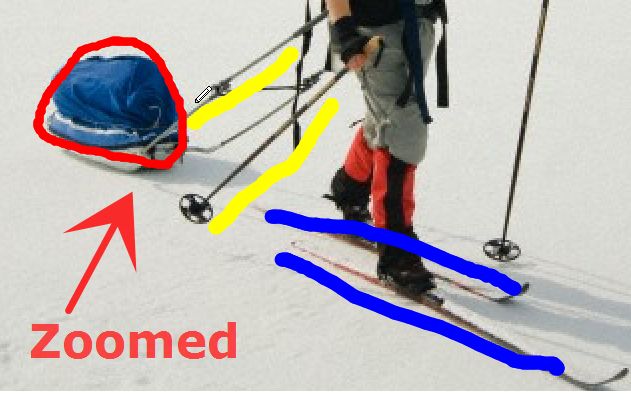
ScreenHunter ScreenZoom provides a convenient way to magnify your screen anytime to see what's going on and draw lines and notes on the screen. This can be integrated into your demos, discussions, training sessions, etc. You also can "freeze" the screen and directly draw on it by using ScreenDraw.
A profile is a collection of settings you choose on the tabs, including options. You can name a profile and save to a location you can access later to create the same capture or record effect.
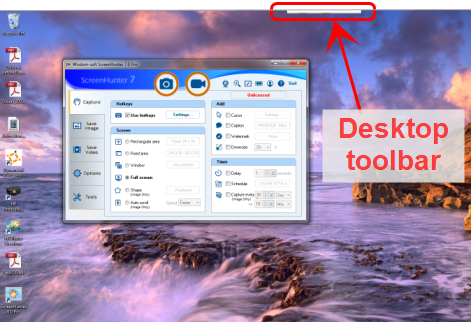
Desktop Toolbar is a miniature window of the ScreenHunter main
window. It is anchored to the edge of your desktop screen, and it
contains buttons that give you quick access to capture and record.
To open the toolbar, move your mouse over the little bar on the top
(or other) edge. You can pin the toolbar or move it. After it is unpinned, it will reside in the closest edge of your desktop.
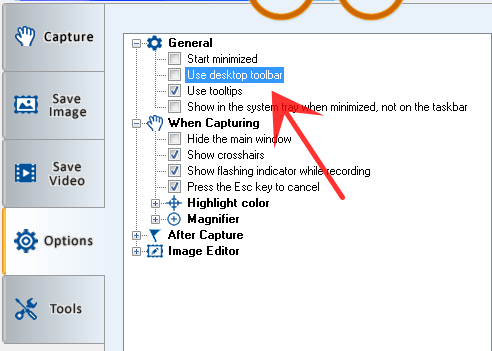
To not show desktop toolbar
On the Options tab, uncheck Use desktop toolbar.
This option change will take effect when ScreenHunter is restarted.
A hotkey is a keyboard shortcut. It is a combination of keyboard strokes that you press on your
keyboard to do a task, e.g. the hotkey Ctrl+C. Pressing the Ctrl key and C key together on your keyboard is commonly used to copy.
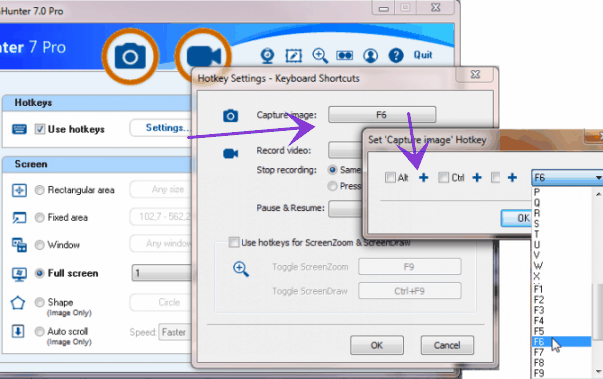
In ScreenHunter, by default, to start capturing, the F6 key is the hotkey. That is, you can press the F6 key on your keyboard to start capturing.
You can change this hotkey by clicking the Settings button on the right and choose any key combination.
In ScreenHunter 7, you can choose not to use any hotkeys.

 Recording length limits


 Search
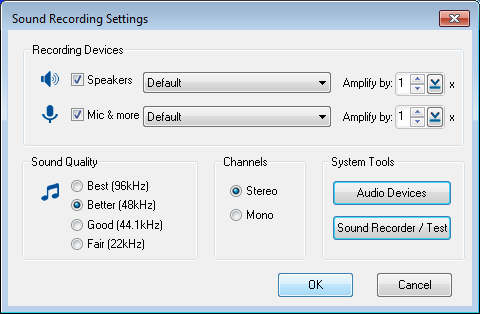

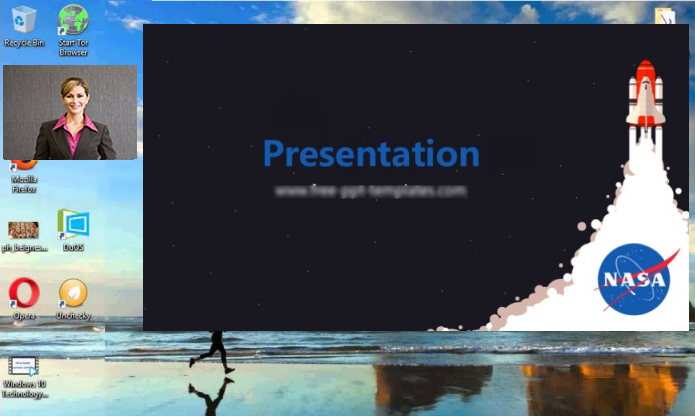
 You can set to stop recording at a given length and save to a video file.
 ScreenHunter 7 uses DirectX so it’s fast and produces professional quality videos.
It's an excellent choice for recording online movies and courses.
ScreenHunter 7 uses DirectX so it’s fast and produces professional quality videos.
It's an excellent choice for recording online movies and courses.
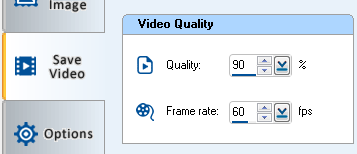
 Frame rate can be set up to 100.



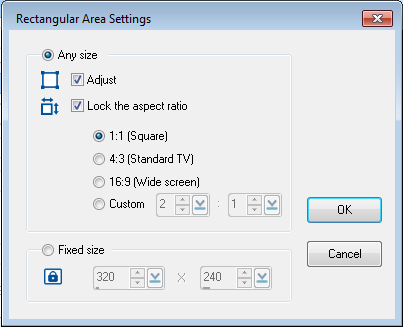
 Capture an image or record a video in a rectangular area anywhere on the screen.
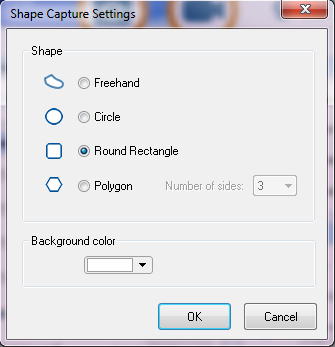
 Capture an entire window or an object on a window, including drop-down menus.
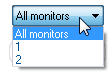
 It supports full screen capture up to 8K for multiple monitors and records 4K videos for a single monitor.

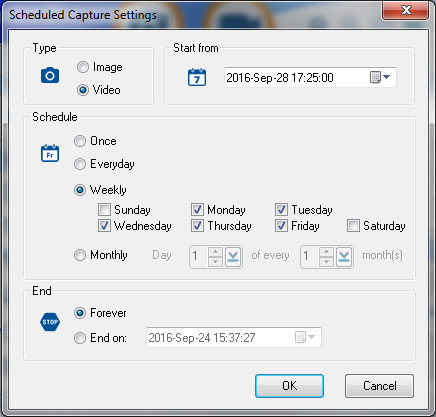
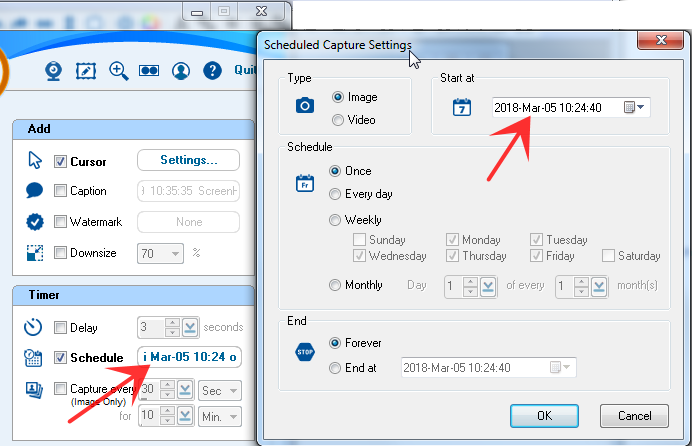
 You can set up to capture according to a schedule.
 Automatically capture images at given intervals.

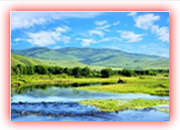
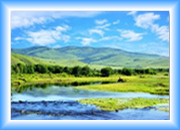
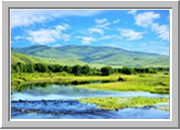
 You can add a border or color effect to your image capture.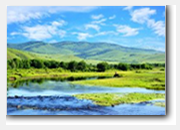

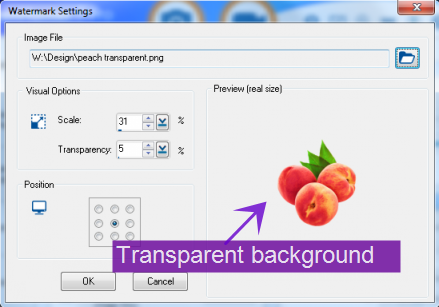
 You can add a text annotation or an image file to show on your image or video.

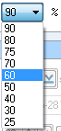
 You can downscale down the capture for image and video.
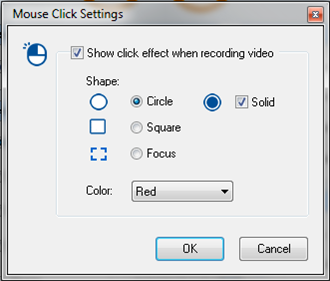
 Add the mouse pointer.

 Email a capture directly, not as an attachment.

 ScreenHunter Image Editor is a combination of a bitmap image editor and vector object editor.
 ScreenHunter ScreenZoom provides a convenient way to magnify your screen anytime to see what's going on and draw lines and notes on the screen. This can be integrated into your demos, discussions, training sessions, etc. You also can "freeze" the screen and directly draw on it by using ScreenDraw.
 A profile is a collection of settings you choose on the tabs, including options. You can name a profile and save to a location you can access later to create the same capture or record effect.
 Check to print the capture directly.

 A hotkey is a keyboard shortcut. It is a combination of keyboard strokes that you press on your
keyboard to do a task, e.g. the hotkey Ctrl+C. Pressing the Ctrl key and C key together on your keyboard is commonly used to copy.
A hotkey is a keyboard shortcut. It is a combination of keyboard strokes that you press on your
keyboard to do a task, e.g. the hotkey Ctrl+C. Pressing the Ctrl key and C key together on your keyboard is commonly used to copy.